
Hi everyone, in this video, we'll introduce how to get started with ParcelWILL Shipment Tracking for WooCommerce.
1. How do we sync and track your orders?
ParcelWILL syncs your order data from the Orders section of your WooCommerce admin.
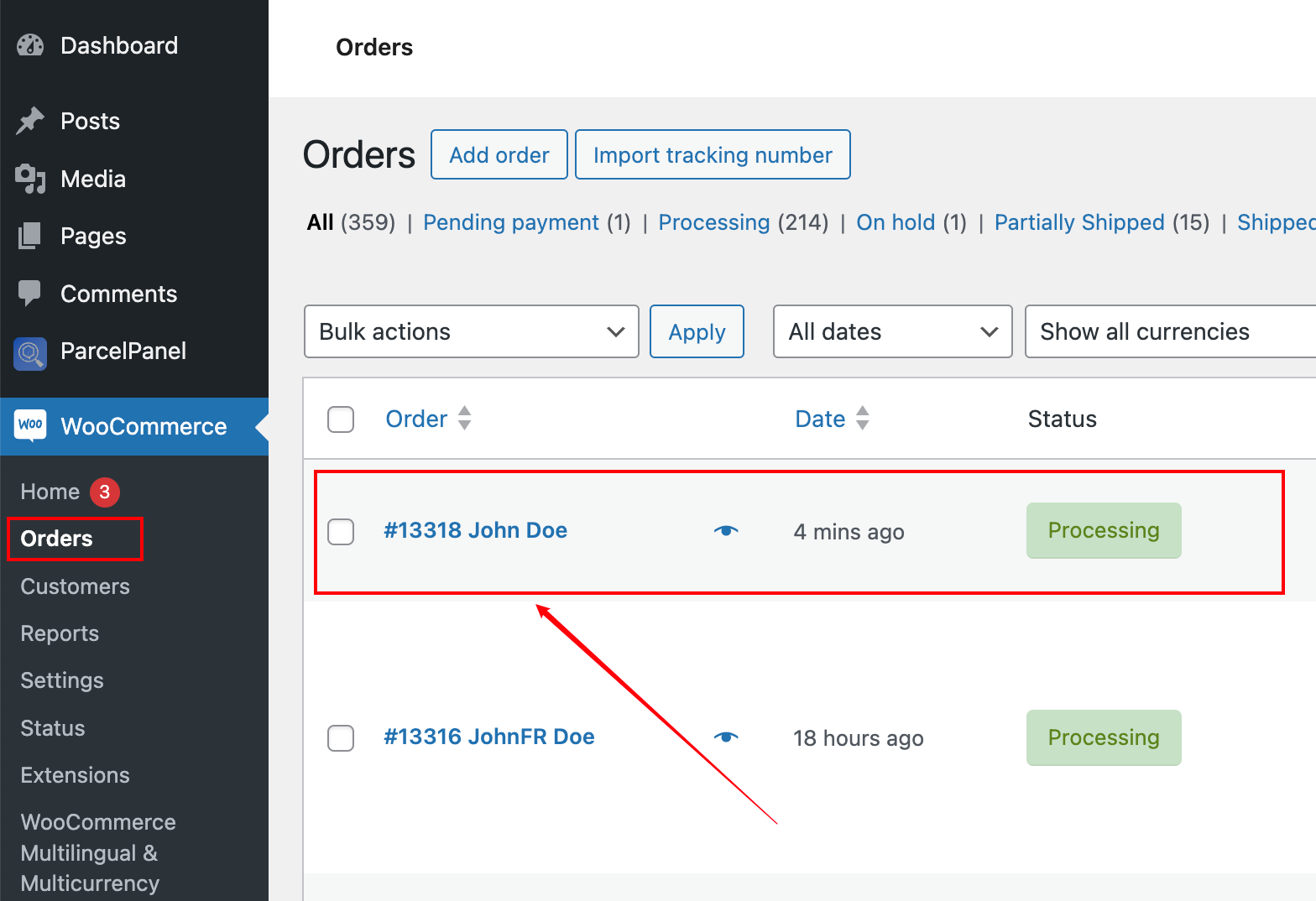
The default sync time is 30 days, but you can change this in the ParcelWILL admin settings. For new users, we offer a special deal that allows free syncing and tracking of your orders from the last 30 days.
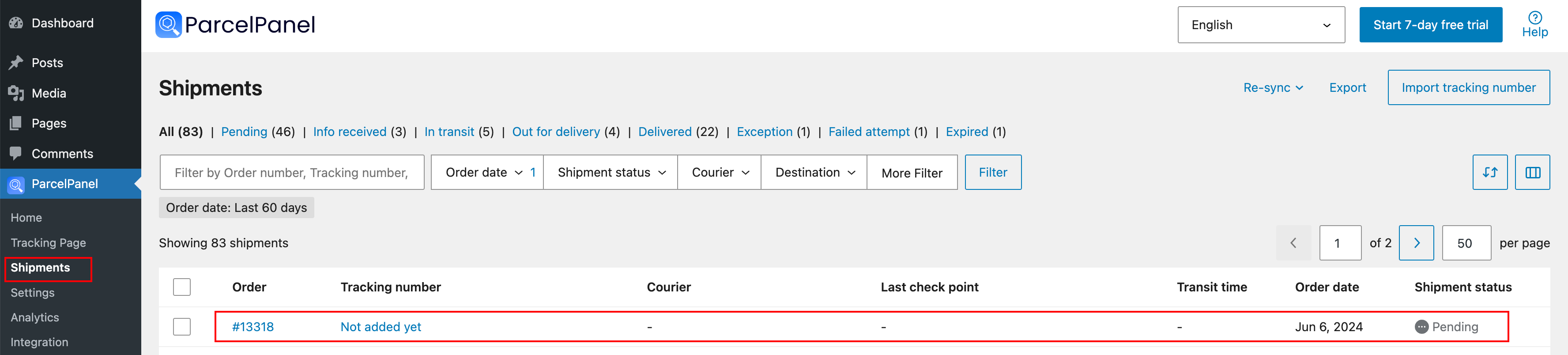
Once an order is placed, it will be automatically synced to the ParcelWILL Shipments page, even without a tracking number.
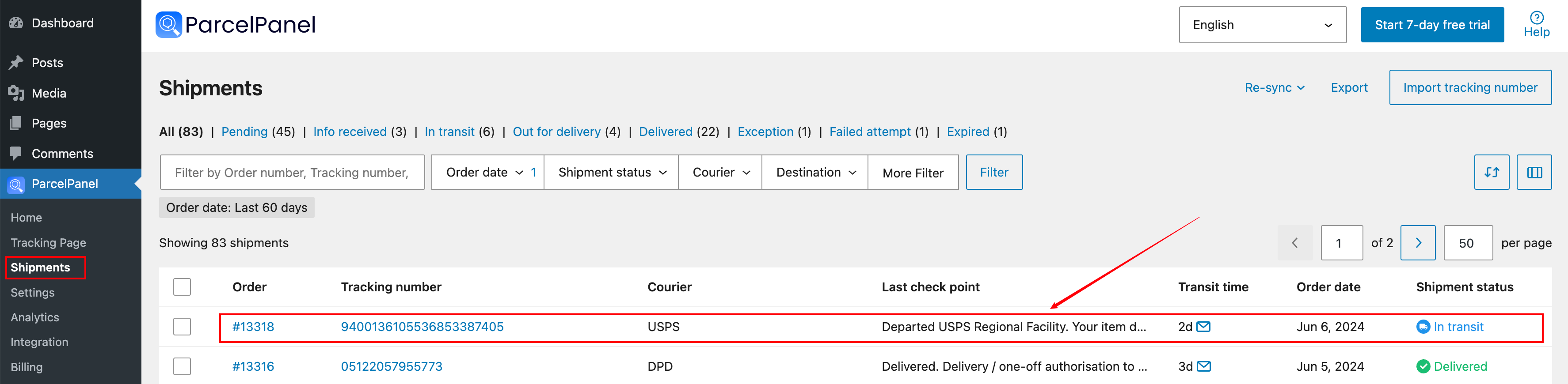
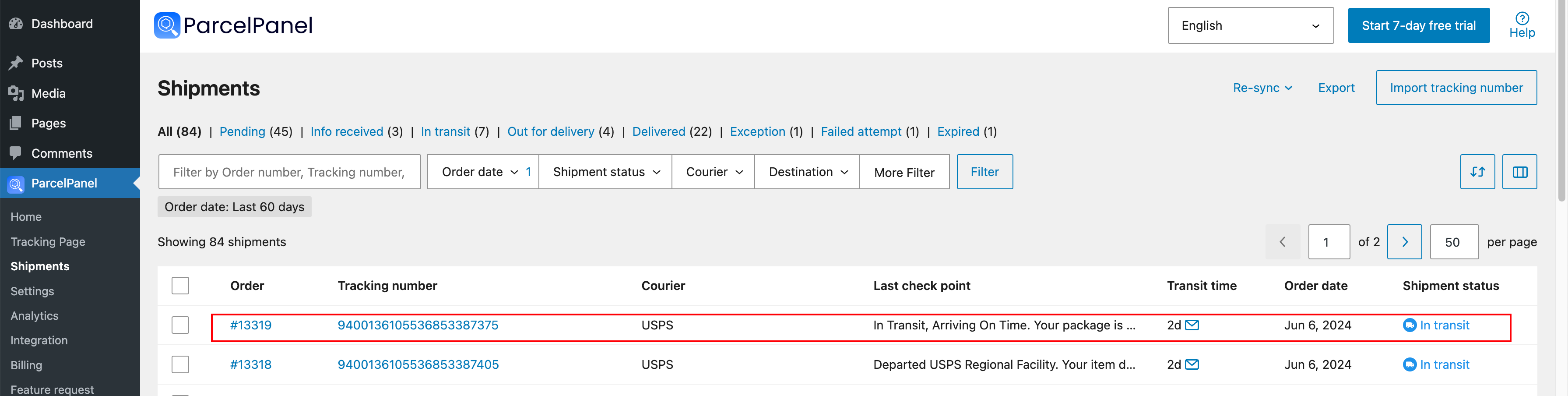
When you add the corresponding tracking number to the order and choose the correct courier manually (or leave it blank for our intelligent system to auto-detect), the tracking number will be synced to ParcelWILL accordingly.
Then our smart system will automatically fetch the tracking details from the courier official website.
2. How to add tracking numbers for your orders?
ParcelWILL Provides 4 ways to add tracking numbers, you can add tracking numbers manually, by using CSV files, integrations, or our tracking API.
a. Add Tracking Numbers Manually
Navigate to your WooCommerce admin → Orders → Edit order → ParcelWILL add tracking number widget → Click the "Add tracking number" button, and a window will appear.
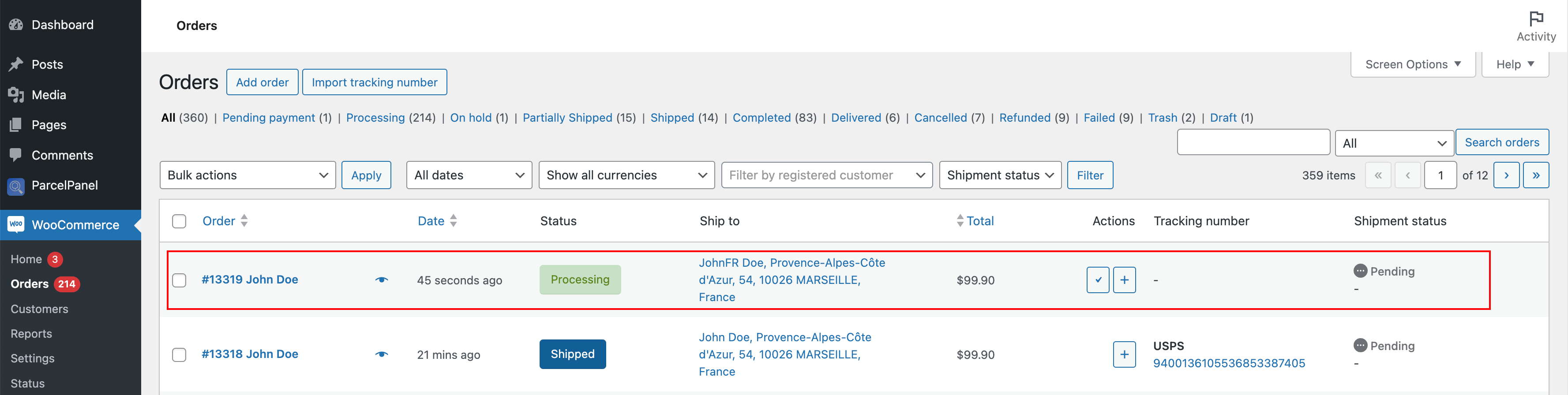
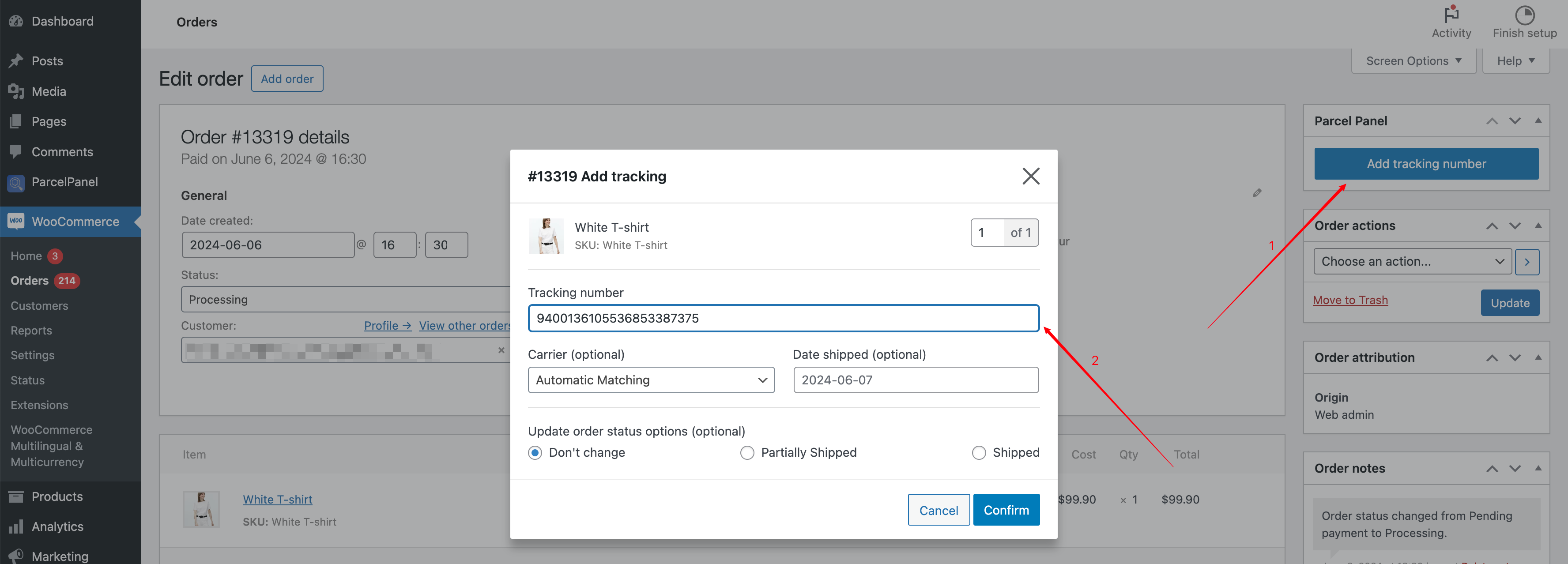
After you add tracking numbers, it will sync to ParcelWILL Shipments page.
b. Bulk Import via CSV
If you'd like to upload tracking numbers for orders within a specific period quickly, we recommend downloading our CSV template file.
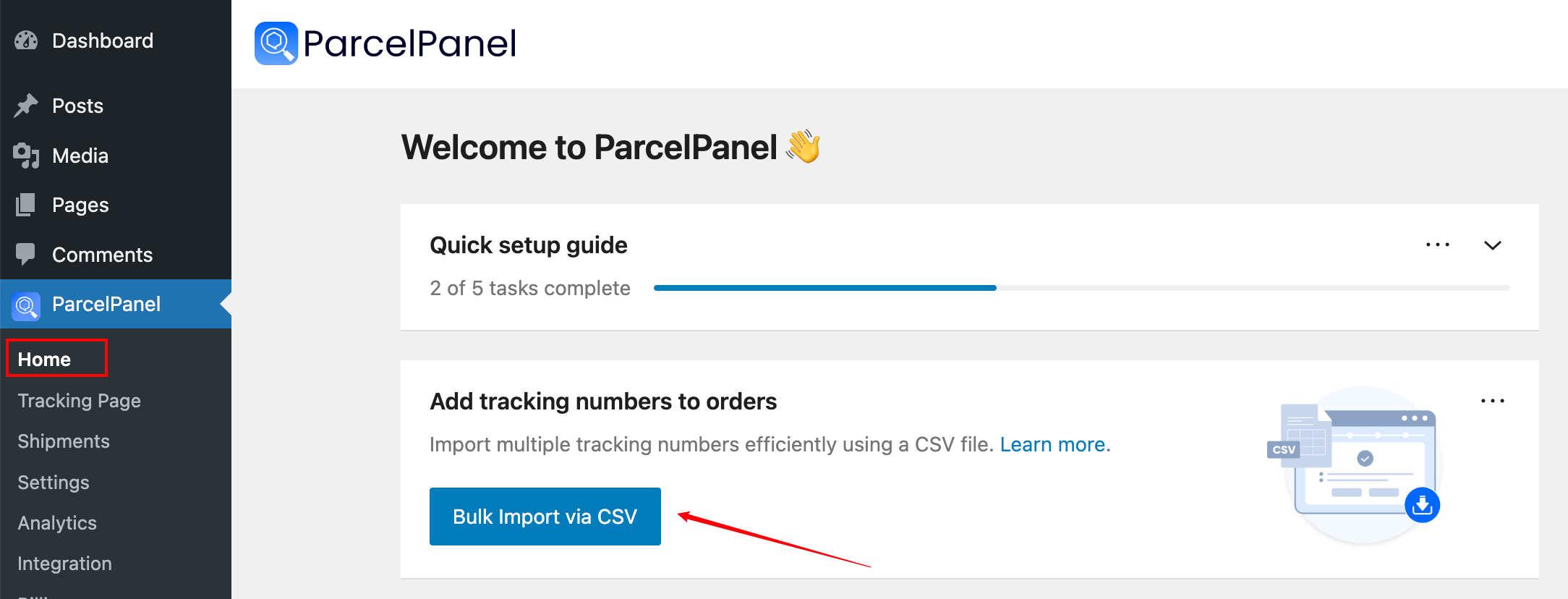
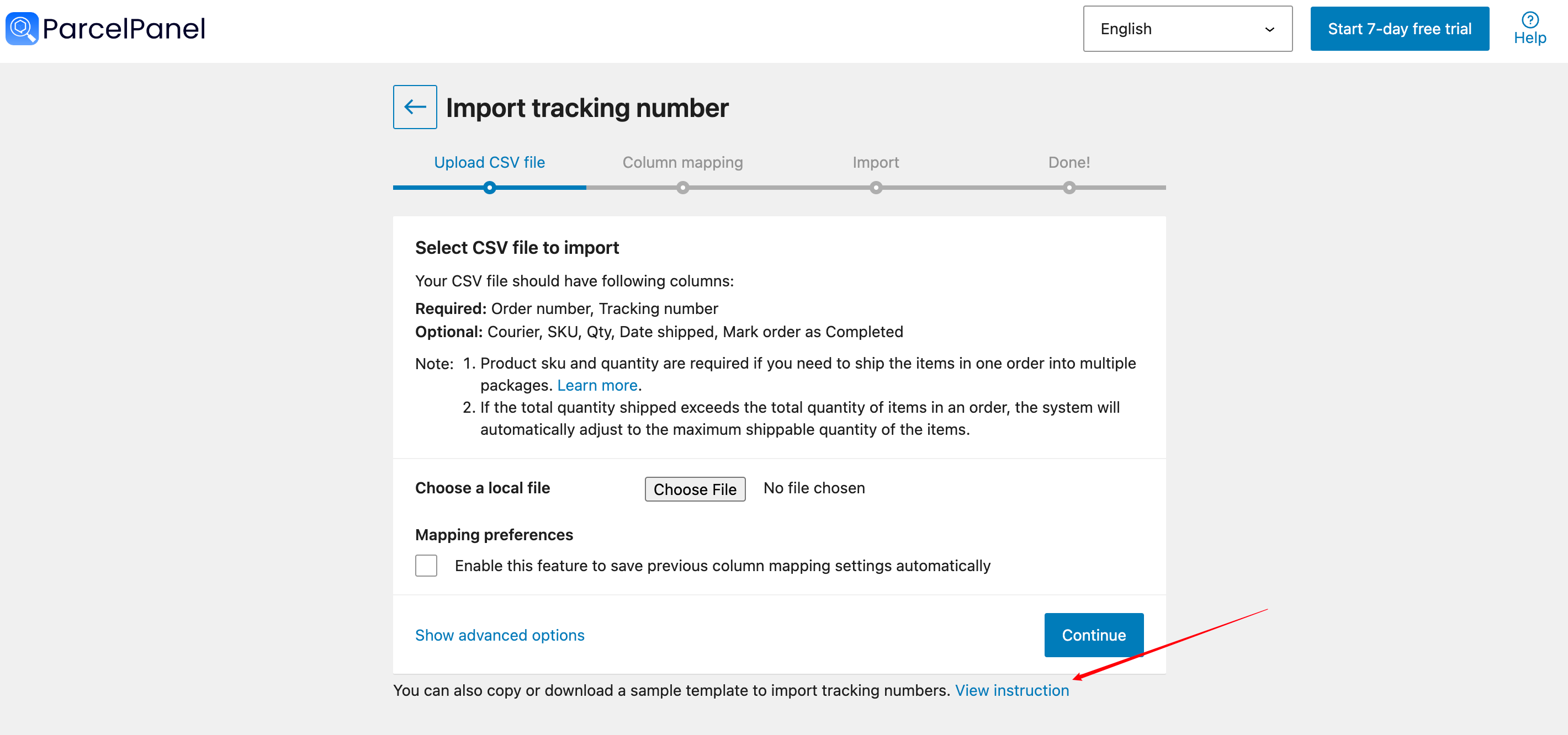
Go to the ParcelWILL admin Home page and click the Bulk Import via CSV button. Click View instruction at the bottom and then Sample template to make a copy of our CSV template file.
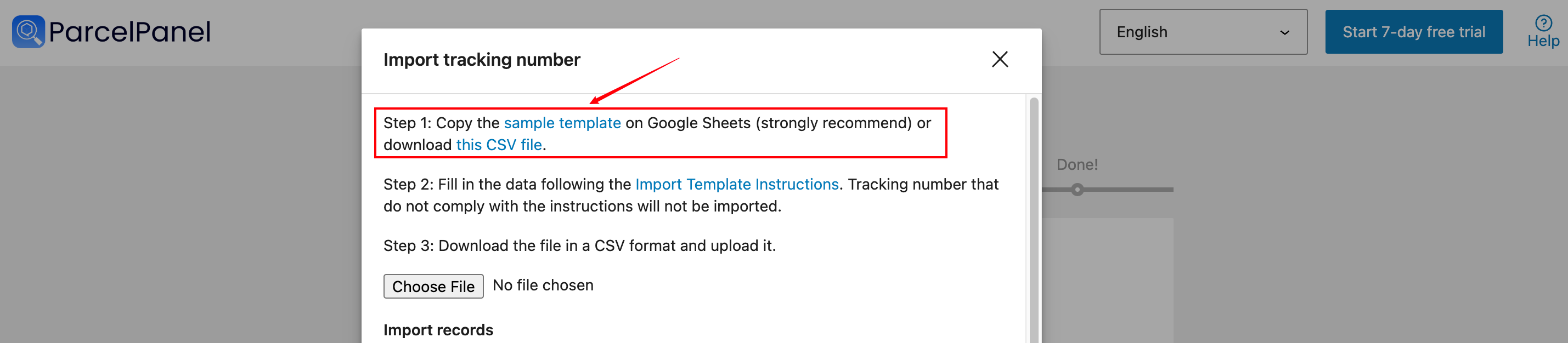

Note:
For more information about the CSV import, please kindly check the reference: https://docs.parcelpanel.com/woocommerce/article/how-to-import-tracking-number-with-a-csv-file/
Additionally, to obtain the tracking number, please note that it's not related to ParcelWILL. Some merchants fulfill orders via third-party services, some use dropshipping apps, and others handle fulfillment themselves. To find the tracking number for your order, we suggest contacting the suppliers or carriers' support directly for assistance.
c. Integration
Go to Integration page → Find various Dropshipping and Shipping apps integrated by Panel → By integrating with such an app, your tracking numbers will be automatically synchronized.
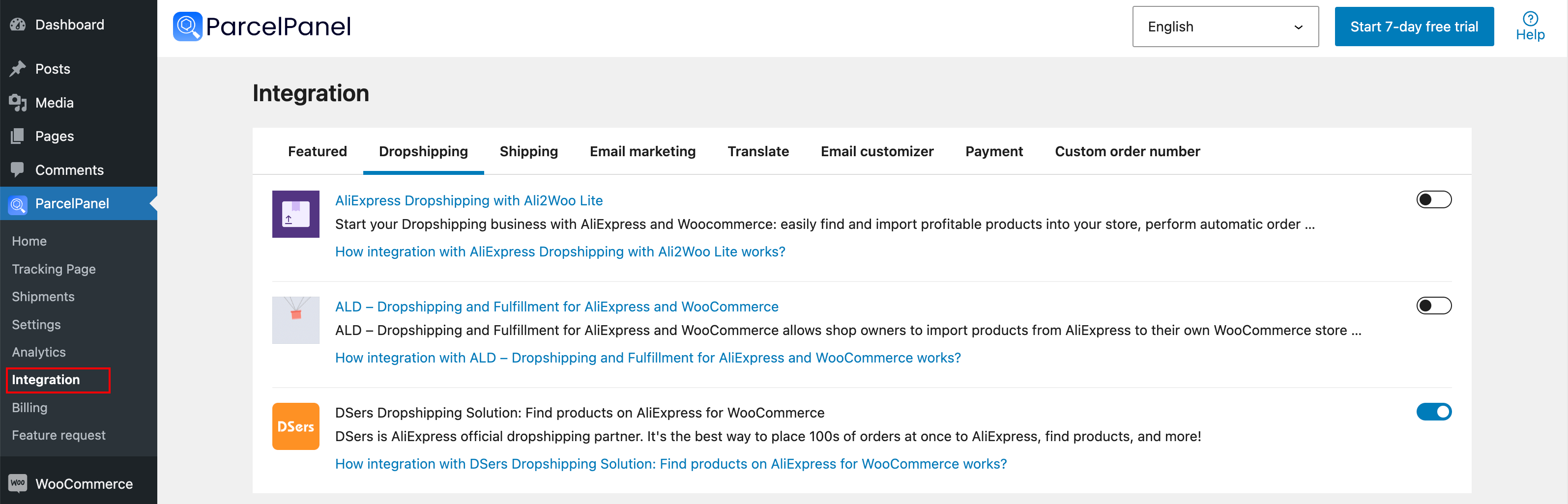
To learn how to integrate a specific app with ParcelWILL, please refer to the corresponding help center article: https://docs.parcelpanel.com/woocommerce/integration/
d. Import Tracking Numbers via API
Go to Integration page → Scroll down the page to the "API Key" section → Click "API doc" to open the API documentation in the ParcelWILL Help Center.
Ask your dev team to get familiar with it. It's worth mentioning that to add tracking numbers in bulk for your orders, you're required to provide the order ID and tracking number. For more information, please refer to the help doc: https://docs.parcelpanel.com/woocommerce/api/pp-woo-api/

3. How do we fetch the tracking details?
ParcelWILL can fetch the tracking details from supported carriers, and now we support 1,300+ couriers worldwide, you can check the list here: https://www.parcelpanel.com/couriers
If you want to add a new courier, please contact our support team without any hesitation.
We understand how important it is for you to get a timely update on your shipments.
If there is no update in ParcelWILL admin but the couriers' websites has, please let us know, our world-class 24/7 support team will check the issue immediately 🌻.